Building a simple RAG Chatbot using Streamlit, LangChain and Gemini
We’ve all seen the power of Large Language Models (LLMs) like Gemini, but as you already know the model’s knowledge is typically limited to their last training date (if they are not utilized with some tools). What if you need them to instantly answer questions based on your latest research papers, meeting notes, or internal documents?
The answer is… guess what… Retrieval-Augmented Generation (RAG). Wasn’t that hard to guess i believe.
This post walks you through building a clean, and document-aware chatbot using the LangChain framework and Streamlit for the User Interface.
What are going to build?
I have recorded a small demo, of what we are going to build:
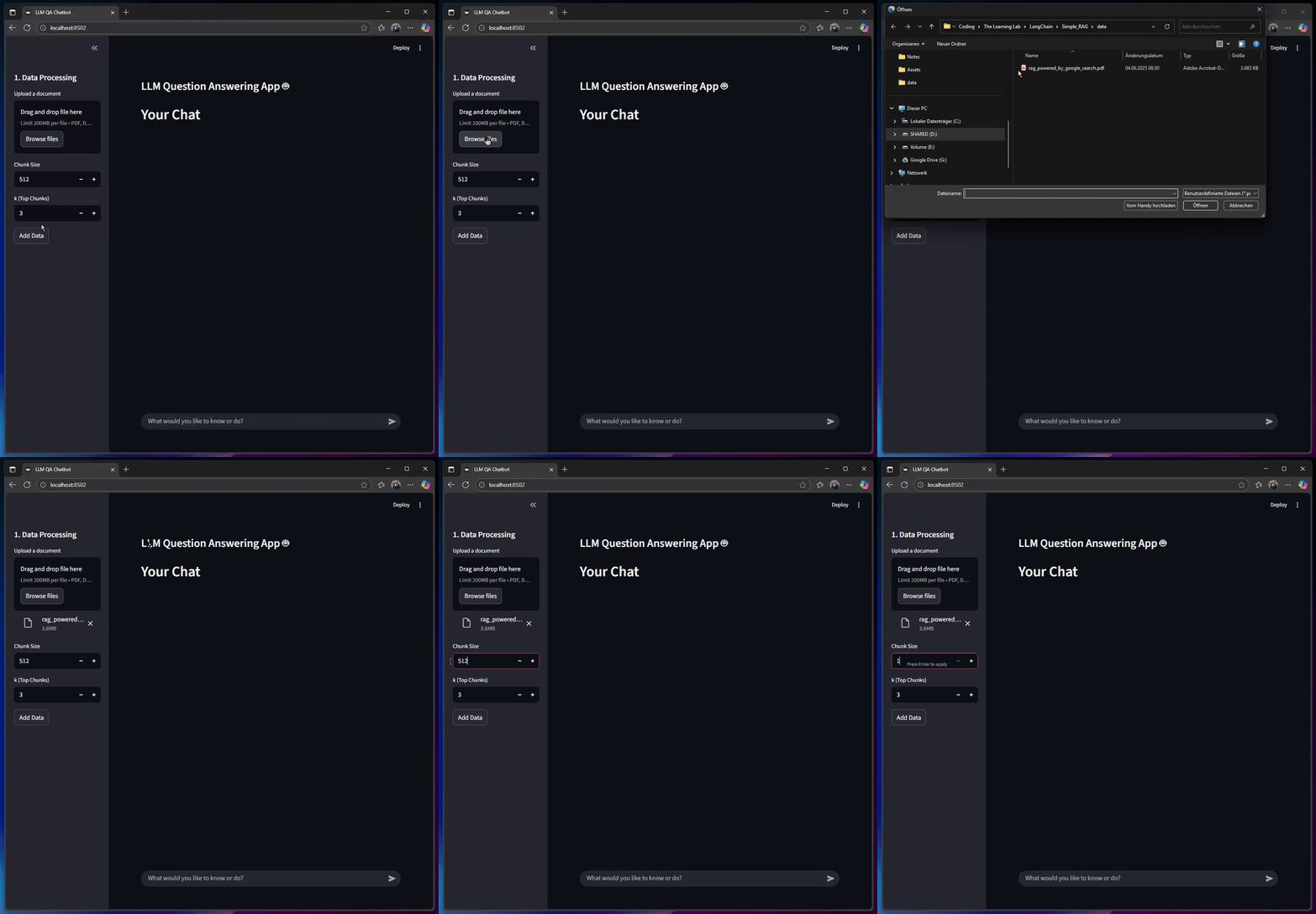
You can the code on Github And now … Without further ado, let’s start.
The Architecture at a Glance
Our RAG system is split into three Python files, ensuring modularity:
| File | Responsibility | Core RAG Step |
|---|---|---|
helper_fncs.py | Environment setup, file loading, and state cleanup. | Ingestion Utilities |
pipeline.py | Chunking, embedding, vector storage, and Q&A Chain. | Retrieve & Generate |
app.py | Streamlit UI, session management, and chat flow. | User Interface |
The Utilities Layer helper_fncs.py
This file handles the necessary boilerplate code, allowing our core logic to stay clean. It manages API keys and translates uploaded files into objects LangChain can process. In this case I’m making use of dotenv.
Document Loading
The load_document function uses the appropriate LangChain Document Loader (PyPDFLoader, Docx2txtLoader, etc.) based on the file extension. This way it can handle various types of documents.
def load_document(file):
    import os
    name, ext = os.path.splitext(file)

    if ext == '.pdf':
        from langchain.document_loaders import PyPDFLoader
        print(f"Loading document {file}...")
        loader = PyPDFLoader(file)
    elif ext == '.docx':
        from langchain.document_loaders import Docx2txtLoader
        print(f"Loading document {file}...")
        loader = Docx2txtLoader(file)
    elif ext == '.txt':
        from langchain.document_loaders import TextLoader
        print(f"Loading document {file}...")
        loader = TextLoader(file, encoding='utf-8')
    else:
        print(f"Unsupported file format: {ext}")
        return None

    data = loader.load()
    return data
State Cleanup
The clear_history function is vital for Streamlit’s state management. We use it with on_change to reset the RAG session whenever the user changes hyperparameters (chunk_size, k) or uploads new data.
def clear_history():
    if 'history' in st.session_state:
        del st.session_state['history']
    st.success("History cleared!")
The RAG Pipeline pipeline.py
This where “the magic happens”. We transform raw documents like pdf-files into searchable knowledge and define the Q&A process. We have to chunk the data, embedd and store it.
Chunking
I’m using a so called RecursiveCharacterTextSplitter to split the documents into smaller and semantically meainingful chunks. The parameters will be changeable using the Streamlit UI.
def chunk_data(data, chunk_size=256, chunk_overlap=20):
    from langchain.text_splitter import RecursiveCharacterTextSplitter

    text_splitter = RecursiveCharacterTextSplitter(
        chunk_size=chunk_size,
        chunk_overlap=chunk_overlap,
        length_function=len,
    )
    chunks = text_splitter.split_documents(data)
    return chunks
Embedding and Storage
Once the chunks have been created, we need them to be embedded and stored. The chunks get converted into vectors (embeddings) using the OpenAI Embeddings model. After that they get stored in Chroma, a leightweigth vectordatabases.
def create_embeddings(chunks):
    from langchain_openai import OpenAIEmbeddings
    print("Creating embeddings...")

    embeddings = OpenAIEmbeddings(
        api_key=OPENAI_API_KEY
    )
    vector_store = Chroma.from_documents(
        chunks,
        embeddings,
    )

    return vector_store
The Q&A Chain
The function ask_and_get_answer uses a dedicated RetrievalQA chain. This is the fastest way to implement RAG: It retrieves relevant chunks and stuffs them into the prompt, with which the LLM (in our case Gemini) will be prompted.
def ask_and_get_answer(
    vector_store,
    q,
    k=3
):

    from langchain.chains import RetrievalQA
    from langchain.chat_models import ChatOpenAI
    from langchain_google_genai import ChatGoogleGenerativeAI

    llm = ChatGoogleGenerativeAI(
        model="gemini-2.0-flash",
        google_api_key=GEMINI_API_KEY
    )
    retriever = vector_store.as_retriever(
        search_type='similarity',
        search_kwargs={'k': k}
    )

    chain = RetrievalQA.from_chain_type(
        llm=llm,
        chain_type='stuff',
        retriever=retriever
    )

    return chain.run(q)
Firs of all, we define the LLM: gemini-2.0-flash. Afterwards we convert the vectorstore into a retriever using the user-defined k value. This value defines how many chunks shall be found. q represents the query. Finally the chain is executed: RetrievalQA.
The Streamlit User Interface app.py
This file contains provides a visual chat experience and manages the session state.
Session state in Streamlit is used to store and persist user data (like chat history or variables) across interactions, so information isn’t lost when the app reruns on user input. I’d like to split it into two parts: The sidebar and the Chat Interaction.
Sidebar
The sidebar is where users control the RAG process. We define the key parameters (chunk_size and k) and handle the file upload. Note how the on_change=clear_history callback ensures the application state is reset if the user adjusts any parameters.
When the Add Data button is clicked, the application reads the file, calculates the embedding cost and then executes the core RAG pipeline functions (chunk_data and create_embeddings) before saving the resulting vector_store to st.session_state['vs'].
    st.set_page_config(page_title="LLM QA Chatbot", layout="wide")
    st.subheader("LLM Question Answering App 🤖")


    if 'messages' not in st.session_state:
        st.session_state['messages'] = []


    with st.sidebar:
        st.header("1. Data Processing")
        uploaded_file = st.file_uploader(
            "Upload a document", type=['pdf', 'docx', 'txt'])
        chunk_size = st.number_input(
            "Chunk Size",
            min_value=100,
            max_value=2048,
            value=512,
            on_change=clear_history
        )

        k = st.number_input(
            "k (Top Chunks)",
            min_value=1,
            max_value=20,
            value=3,
            on_change=clear_history
        )

        add_data = st.button(
            'Add Data',
            on_click=clear_history)

        if uploaded_file and add_data:
            with st.spinner('Reading, chunking and embedding data...'):
                data = uploaded_file.read()
                file_name = os.path.join('./', uploaded_file.name)
                with open (file_name, 'wb') as f:
                    f.write(data)

                data = load_document(file_name)
                try:
                    os.remove(file_name)
                except Exception:
                    pass

                if data:
                    chunks = chunk_data(data, chunk_size=chunk_size)
                    st.success(f'Chunks created: {len(chunks)}.')

                    tokens, embeddings_cost = calculate_embedding_cost(chunks)
                    st.info(f'Token costs: {tokens}, Estimated costs: ${embeddings_cost:.4f}')

                    vector_store = create_embeddings(chunks)
                    st.session_state['vs'] = vector_store
                    st.success("Data successfully prepared for querying!")

                    st.session_state['messages'].append({
                        "role": "assistant",
                        "content": f"Your documents ({uploaded_file.name}) have been processed. You can now ask questions."
                    })
                    st.rerun()
Chat Interaction
The main part of the application handles the visual display and user interaction.
- History Display: We iterate through
st.session_state['messages']to display the conversational history using thest.chat_messageelement. - Input Handling: When a user types into
st.chat_input:- The user message is appended to the session history.
- We check if a
vector_storeexists. If not, we prompt the user to upload data. - The core RAG function,
ask_and_get_answer, is executed within a so called spinner, retrieving the answer from the document context. - The LLM’s response is displayed and saved to the session state. A
try...exceptblock ensures a error message if the LLM call fails.
st.header("Your Chat")

    for message in st.session_state['messages']:
        with st.chat_message(message["role"]):
            st.markdown(message["content"])

    if prompt := st.chat_input("What would you like to know or do?"):

        st.session_state['messages'].append({"role": "user", "content": prompt})
        with st.chat_message("user"):
            st.markdown(prompt)

        if 'vs' not in st.session_state:
            with st.chat_message("assistant"):
                st.warning("Please upload documents first and click 'Add Data'.")
            st.session_state['messages'].append({"role": "assistant", "content": "Please upload documents first and click 'Add Data'."})
            return

        with st.chat_message("assistant"):
            with st.spinner("Generating answer..."):
                vector_store = st.session_state['vs']
                current_k = st.session_state.get('k', 3)
                try:
                    answer = ask_and_get_answer(vector_store, prompt, k=current_k)
                    st.markdown(answer)

                    st.session_state['messages'].append({"role": "assistant", "content": answer})

                except Exception as e:
                    error_msg = f"An error occurred while generating the answer: {e}"
                    st.error(error_msg)
                    st.session_state['messages'].append({"role": "assistant", "content": error_msg})
How to Use It
To run the app, make sure you have all dependencies installed. Then simply start the Streamlit app from the project directory:
streamlit run app.pyThis will open a browser window where you can upload your document and start chatting with your data.
Conclusion
You now have a working RAG chatbot that you can extend in many ways—experiment with chunk sizes, try other LLMs, or connect to more data sources. If you have questions or ideas, feel free to reach out or check out the code on GitHub. Stay tuned for more posts on advanced RAG techniques!In one of my next posts I’d like to write about Hybrid RAG, combining knowledge graphs with classical RAG.