Python’s keyring module
The keyring module is a library that provides secure and easy access to the operating system’s native keyring services. Think of it as a digital keychain for passwords and other sensitive information.
Why is keyring important?
If you need to store passwords, API keys, or other confidential data in your Python applications, it’s not a good idea to write them directly into the source code or store them in unencrypted files. This poses a significant security risk.
This is where keyring comes in. It allows you to store this sensitive data securely by using the native mechanisms of the operating system. This means:
- Platform-independent:
keyringautomatically tries to use the most suitable keyring backend for your environment. Depending on the operating system, this could be, for example:- macOS Keychain on macOS
- Windows Credential Locker on Windows
- GNOME Keyring or KDE Wallet on Linux
- Security: Passwords are not managed by your application itself, but by the operating system, which usually offers more robust security measures (e.g., encryption, access control).
- User-friendliness: For the end user, this often means that they only have to enter the master password for the system keychain once (for example when logging into Windows) to enable access for all applications that use the keychain.
How does keyring work?
The basic use of keyring is very simple:
-
Installation:
pip install keyring -
Save password: You enter a
servicename (the name of your application or the service for which the password is intended), ausername, and thepassword.import keyring keyring.set_password( 'my_awesome_app', 'my_user', 'my_secret_password123') -
Retrieve password: You specify the
servicename and theusername.import keyring password = keyring.get_password('my_awesome_app', 'my_user') if password: print(f'The password is: {password}') else: print('Password not found.') -
Delete password:
import keyring
try:
    keyring.delete_password('my_awesome_app', 'my_user')
    print('Password deleted.')
except keyring.errors.PasswordDeleteError:
    print('Password not found or could not be deleted.')
The output of the script will then be:
The password is: my_secret_password123
Password deleted.
Use cases
- API credentials: Your Python application needs to access an external API that requires authentication. Instead of storing the API key directly in the code, you store it in the keyring. This could be your OpenAI API key, for example, which you use to access GPT and similar services.
- Database access: If your application communicates with a database, the database login credentials can be stored securely in the keyring. To stay in the world of language processing, this could be Pinecone, for example.
- Email credentials: For applications that send or receive emails. I’ll spare you an example here :)
Advantages of keyring:
- Improved security: Reduces the risk of sensitive data being exposed.
- Better user experience: Users don’t have to re-enter passwords every time they log in to an application if they are already stored in the system keyring.
- Easy integration: The API is very intuitive and easy to use.
- Automatic backend management:
keyringtakes care of finding the right backend for the respective operating system.
Creating a key in Windows
There are various ways to store your keys, for example in the Windows Credential Locker.
Storing a key with keyring
You can store your key using keyring, like in the above example. This means, of course, that the key is stored in plain text in a Python script for this process. This script should not be published ;)
Storing the key manually
You can also create the entry (the key) manually or check the entry:
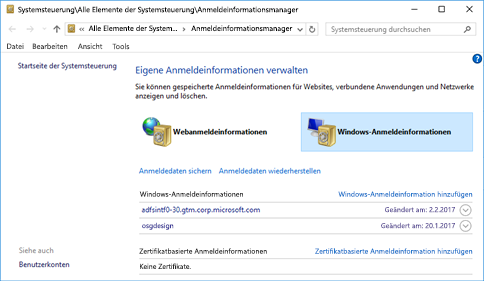
- Press the
Win + Rkeys and type control. When you confirm your entry withEnter, the Control Panel will open. - In the Control Pane, you can then search for Credential Manager and open it by clicking on it.
- Now you can select
Windows Credentialsin the upper right corner. - Under
Generic Credentials, you should either find the entry you created or you can create a new one by clicking on the Add dialog.
Summary
The keyring module is a valuable addition to any Python application that needs to handle sensitive data such as passwords securely and it’s not particularly complicated to use.